
As promised, here are my notes from my recent presentation at the Computer Coach-hosted session, Becoming an Empowered AI Worker, which took place on Tuesday, October 10, 2023.
Want to learn how to make the most of your work and career? Follow Computer Coach’s events via the Career Success Academy meetup group.
Intro: The reason the recent AI wave feels so overwhelming
It’s only natural to feel overwhelmed with the pace of AI development and what feels like a daily deluge of new AI applications and improvements to existing ones. That’s because we’re not naturally wired for this rate of change. Case in point: Ancient Egypt.

From 3150 BCE to about 330 CE, Egypt was incredibly stable. That stability came from the fact that as a culture, they remained relatively unchanged for over 3000 years. In the absence of some kind of pressure or catalyst to change, we naturally tend towards inertia.
As you already know, the modern era is quite different from Old Egypt. Consider this (incredibly simplified) timeline showing the history of computing:
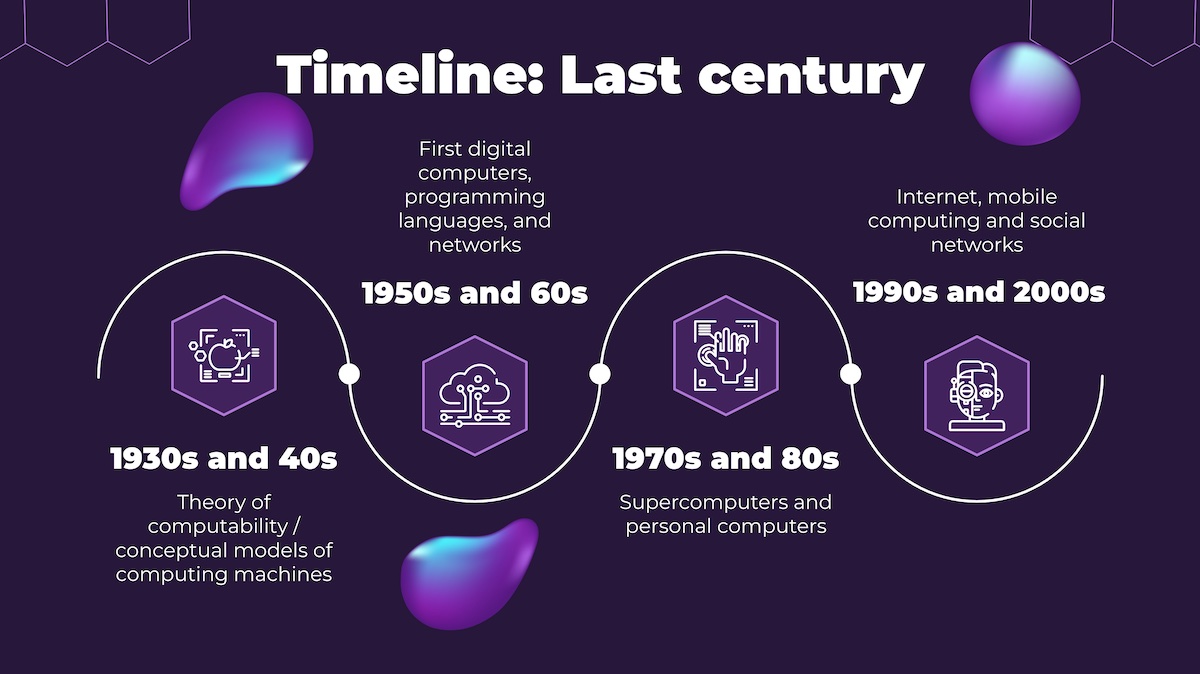
- 1930s – 40s: Computing’s largely theoretical era. The formal mathematical definition of “computable” was developed during this time, as were these two key concepts:
- The Turing Machine: Creating by Alan Turing, this is a hypothetical machine that can describe any working algorithm. Every program, from “Hello World” to ChatGPT, can be expressed as a form of Turing Machine.
- The von Neumann Architecture: Conceived by John von Neumann, this is the general organizing principle for computers — even today’s machines.
- 1950s – 60s: This period gave us the first digital computers as well as the first programming languages — COBOL, FORTRAN, ALGOL, BASIC, PL/1, as well as the three whose influence lives on in today’s programming languages: Lisp (functional programming), Algol (structured programming), and Simula (object-oriented programming).
- 1970s – 80s: An interesting era where computers went in two different directions. We got Cray supercomputers (they were supercomputers at the time, but a 2011-era iPad can keep up with them) and personal computers.
- 1990s – 2000s: The internet as we know it (it’s been around since 1969 in the form of ARPANET), smartphones starting with the BlackBerry and followed later by iPhone and Android, publicly-accissible GPS, wifi, and all the goodies that we can’t live without today.
Remember, computing — even as a theory — isn’t even 100 years old yet!
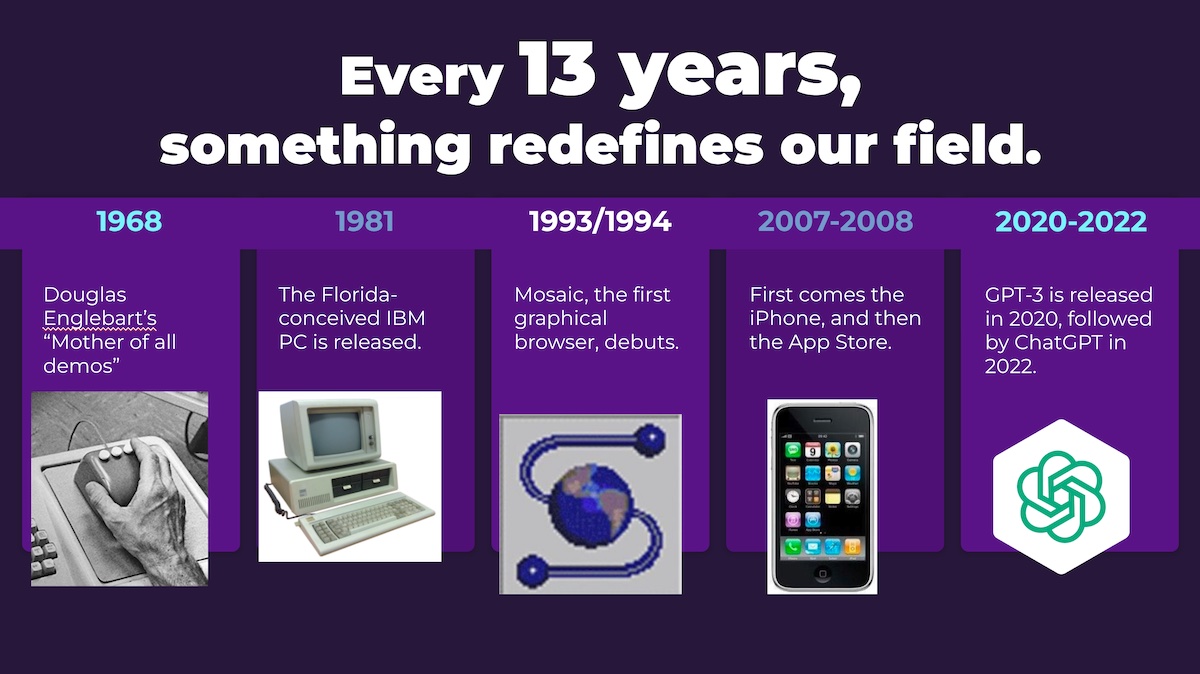
I have a pet theory that every 13 years, a computing innovation appears and changes everything. (I basically summarized this theory in the presentation, and you can read about this in more detail in an earlier article of mine, Computing innovations happen every 13 years, and we’re at the start of a new one.)
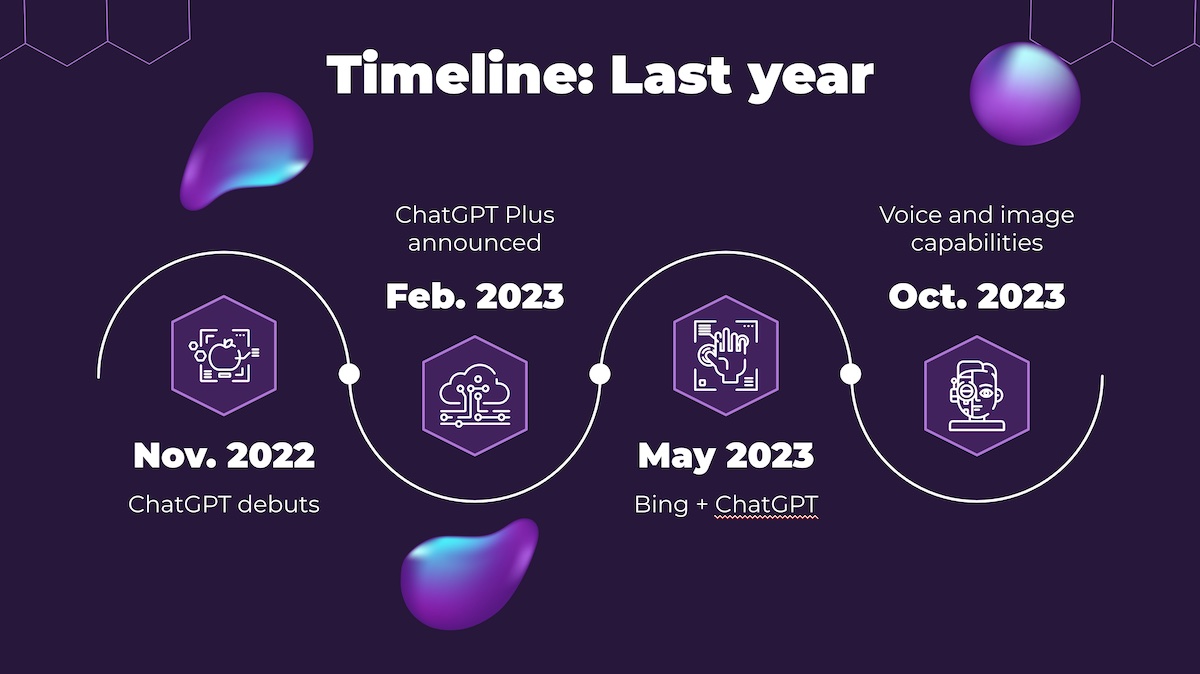
Remember that ChatGPT hasn’t even been out a year yet! It debuted on November 30, 2022, and since then, OpenAI have been working hard at improving and enhancing it, and their rivals have been racing to keep up with them.
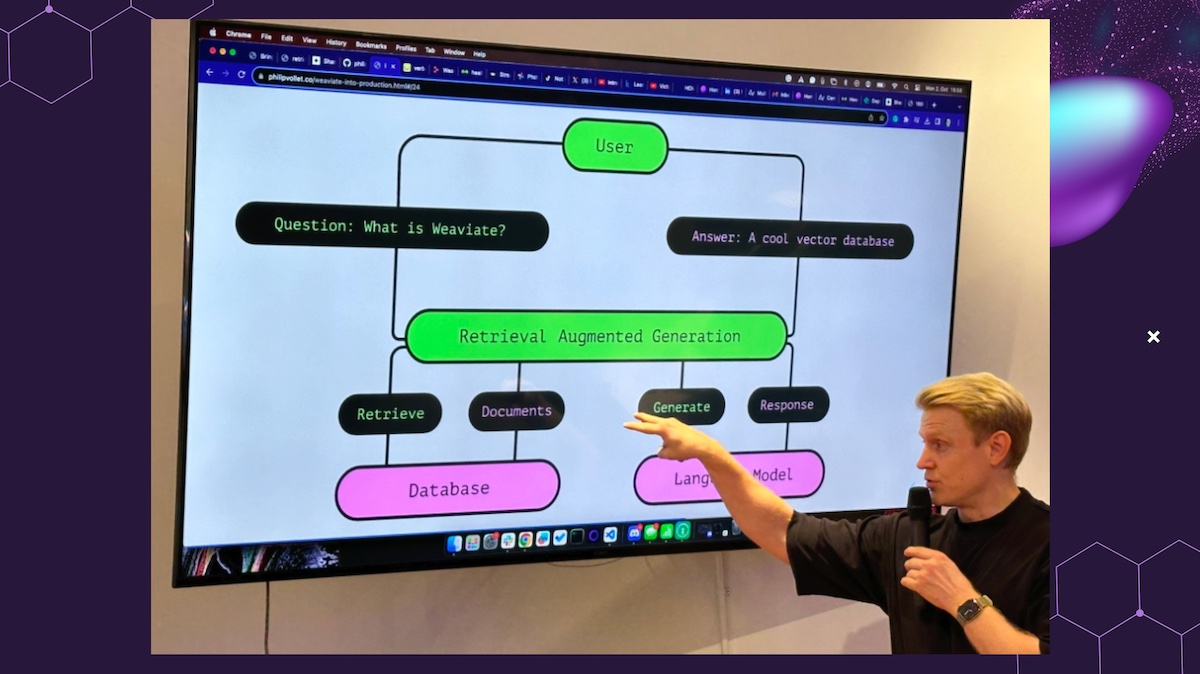
As a final example of how quickly things were evolving in the AI world, I showed a couple of photos from the Bay Area AI meetup I attended in San Francisco on Monday, October 2:

Not only was it quite well-attended for a Monday meetup (at least 60 people), but the attendance came from all over the San Francisco Bay Area:



The meetup had three technical presentations, all of which centered around RAG — retrieval-augmented generation. This is a process that enhances the results produced by large language models by retrieving additional facts or information from an external knowledge source. If you’ve ever added to a discussion by looking something up on your phone, you’ve performed a simple version of RAG.
After this introductory bit (which gave an opportunity for latecomers to join the Zom chat), I got to the main topic — using AI in your day-to-day work.
How to be more effective at work with the help of an LLM
Summarizing
If your job is in a “knowledge work” field, chances are you’ll end up doing a lot of reading. This will be doubly true if you’re working in a field where a lot of reading material is the norm, or if you have a manager who likes to stick you with the tedious work they’d rather not do.
In cases like this, you’ll find LLMs’ ability to summarize text very handy. Consider a recent Wired article, New York’s Airbnb Ban Is Descending Into Pure Chaos. I copied the text of the article and pasted it into ChatGPT Plus (but using GPT 3.5) following this prompt:
Summarize this article:

[I pasted the article text here]
ChatGPT turned it from a 15-paragraph article into a 6-paragraph summary. That’s useful, but I went further with this prompt:
Could you summarize that article in a single sentence?Here’s how ChatGPT responded:
New York City's crackdown on short-term rentals, particularly on Airbnb, has led to a surge in illegal listings on social media and lesser-known platforms, resulting in a rental black market, as the city's short-term rental landscape undergoes significant changes.One of the attendees asked if I could get ChatGPT to provide the top three points of the article. I said this was a good idea, and that in the spirit of experimentation, we should try it. I used this prompt:
Give me the top 3 points from the article.ChatGPT’s response:
1. New York City's ban on most short-term Airbnb rentals has led to a significant drop in listings on the platform, with many properties going unregistered, resulting in a rental black market.

2. The crackdown has reshaped the vacation rental market in the city, with people turning to alternative platforms like Craigslist, Facebook, and Houfy to evade regulations, potentially posing risks to both guests and hosts.

3. Airbnb is shifting its focus away from New York, once its largest market, and exploring other opportunities such as longer rentals, car rentals, and dining pop-ups, while the city grapples with the consequences of the short-term rental ban.
Someone asked if ChatGPT could translate those points into Spanish, so I entered this prompt:
Can you translate that into Spanish?Here’s how ChatGPT responded:
1. La prohibición en la ciudad de Nueva York de la mayoría de las propiedades de alquiler a corto plazo en Airbnb ha resultado en una disminución significativa de las ofertas en la plataforma, con muchas propiedades sin registrarse, lo que ha dado lugar a un mercado negro de alquileres.

2. La represión ha transformado el mercado de alquileres vacacionales en la ciudad, con las personas recurriendo a plataformas alternativas como Craigslist, Facebook y Houfy para evadir regulaciones, lo que potencialmente plantea riesgos tanto para los huéspedes como para los anfitriones.

3. Airbnb está desviando su atención de Nueva York, una vez su mercado más grande, y explorando otras oportunidades como alquileres más largos, alquiler de automóviles y restaurantes emergentes, mientras la ciudad lidia con las consecuencias de la prohibición de alquileres a corto plazo.
Keep in mind that machine translation, even in this new age of AI, should be taken with a grain of salt. The Spanish speakers in the audience said “not bad.”
Seed words and phrases
I didn’t have time to cover the concept of seeding ChatGPT, so this is bonus material!
You can direct ChatGPT’s answers by providing key words, phrases, or concepts to focus on in your prompt. These words and phrases are called seed words and seed phrases and you can use them to get ChatGPT output that better fits your needs.
For example, here’s a prompt that gets ChatGPT to provide a short summary of the article around the word “rent:”
Summarize the article in a way that is related to the seed word "rent".Here’s how it responded:
The article highlights the evolving landscape of short-term rentals in New York City, where strict regulations have led to a surge in unregistered rentals, creating a rental black market and reshaping the vacation rental market. Airbnb, once a dominant player, is now shifting its attention away from the city, affecting the rental dynamics.Let’s try getting a summary from a different angle — the legal perspective — and with slightly different prompt phrasing:
Summarize the article in a way that is related to the law.ChatGPT’s reply:
The article discusses the consequences of a new law in New York City that heavily regulates short-term rentals, leading to a significant reduction in Airbnb listings. Many unregistered rentals have emerged, creating a rental black market. The article also mentions efforts by smaller landlords to change the law to allow them to legally rent out their units and how Airbnb is shifting its focus in response to the new regulations.Note the differences, subtle as they are, between the summaries.
By using seed words and phrases, you can get ChatGPT to focus on a specific topic or emphasize a specific point. If you’re writing a memo to convince a manager to take a certain action, or sales or marketing copy, you’ll find seed words and phrases very useful.
Text classification
This is one trick that comes in handy when dealing with lots of text documents: making it classify them into different categories. I provided a simple example where I took three Amazon reviews — one for a car jump starter, one for an aloha shirt (a.k.a. Hawaiian shirt), and one for a wireless router — and then had ChatGPT put them into one of three categories:
- Electronics
- Home and garden
- Clothing
Here’s what I provided to ChatGPT:
Perform text classification on the following reviews and classify them into different categories such as “electronics”, “home and garden”, and “clothing”:

Reviews

Review 1:
5.0 out of 5 stars Awesome little jump started!
Reviewed in the United States on August 5, 2023
Color: 4000AVerified Purchase
I have an old Generac generator that we use when we have power failures or other things happen and try to remember to start it every month or two to keep the gas clean and make sure everything is going well. The last few times, it is really slow to start and pulling the thing to start is a nightmare since it is so big! Instead of replacing the battery pack, I decided to spring for this for just a little more. The generator has the connections to jump start right near the push button, so it is a breeze to hook up and it cranks way better than the battery pack that I bought a couple of years ago ever did!

I am looking forward to having this to be able to jump all of my devices that have starters as well as for backup power in case we need it. It seems to have great safety features, after cranking for a while (since I turned the choke the wrong way) it shut off the start ability for just a second. I let off the button on the generator and the pack reset itself and was ready to crank again in about a second and a half.

I love that it has a case that is big enough to keep all the parts in, I have a habit of collecting random cords in boxes, so my life is miserable when I need to find stuff sometimes.

I hope it holds up to use and storage, just remember to charge it as soon as you get it, it showed four out of four bars, but when I plugged it it, it charged for a couple of hours while blinking the last light.

I hesitated to buy this, thinking I wasn't sure of the technology or if it would have the power of a regular generator battery but it has won me over in a big way!

Edit: I was using it to charge something a few weeks ago and it completely locked up. I let it sit for a few hours and it still didn't work on either the USB ports or the battery terminals. The terminals would start but would click and act like there was a short circuit within a few seconds, only allowing use for a very short time. I contacted the seller, they got right back to me, but I had left for a trip. When I got back home, I tried it and it worked perfectly. Apparently, it needed a bit more time to reset! I appreciate the quick response from the seller and I have now used it to charge a camera, a phone (multiple times) and jumpstart a truck without any hiccups at all. I still think it is a great product - just the right size and weight to be in my truck all the time. I don't have any hesitation recommending this for anyone since I know the seller backs it up with fast support response and stands behind their products.

Review 2:
A Stylish and Comfortable Hawaiian Shirt for Any Occasion
Reviewed in the United States on September 4, 2023
Color: CoffeeSize: MediumVerified Purchase
I recently purchased the VATPAVE Men's Casual Hawaiian Shirt in Coffee, and this marks my second time buying this shirt. It's safe to say that this shirt has become a staple in my wardrobe, and here's why:

Fit and Sizing (4/5): I initially bought this shirt in a Large, but after some weight loss, I opted for a Medium this time. It's worth noting that this brand tends to run a bit large, which suits my style perfectly. I prefer wearing it untucked, and the size works well for that relaxed look. However, if you plan to wear it as a dress shirt or with a blazer, you might consider sizing down, though it's not a dramatic difference.

Versatile Style (5/5): I've found this shirt to be incredibly versatile. It's my go-to choice for all casual occasions, whether it's a weekend outing or a dress-down Friday at work. The Coffee color is a rare find in casual shirts, and the tropical floral pattern is simply captivating. It adds a touch of uniqueness to your outfit.

Review 3:
4.0 out of 5 stars Latest Firmware fixed my issues
Reviewed in the United States on June 22, 2023
Style: AX3000, WiFi 6 RouterVerified Purchase
I waited for the latest firmware update to write this review. After the June 2023 update, this router has been rock solid with 20+ clients and a TP-Link extender. Updates are automatic. Just make sure it is turned on in the settings. I explain my initial issues at the end of the review.

The first thing I like is that you can do everything you need with any web browser. You do not have to sign up for any TP-Link account unless you use the available app or want remote features like parental controls and additional security and analytic features which makes perfect sense.

You can easily set up a mesh network with extenders. Mesh is brain dead easy with a TP-Link extender. Just turn it on in the settings and you have a mesh network.

This router can make 3 separate networks with both 2.5GHz and 5GHz. The main wireless network, and an isolated guest network, and an IoT network to keep your light bulbs and guests from infecting your computers. It supports Alexa and Google assistant. Support for VPN clients and servers. Also support for Dynamic DNS. It has an SPI firewall, NAT forwarding, and access controls all without signing up for an account. Don’t worry if all that is confusing. If you don’t know what they are then you don’t need them, except for the firewall which is on by default. Another feature I like is the ability to name all the devices in the connected clients list. For example, you may see a device named “Ring-49825”. You can name it “Driveway-Camera” or rename other devices like your thermostat, mobile phones, or whatever is connected to your network with some strange identifier.

I gave only 4 stars because of the issues I had with the firmware released at the time of my purchase. After about 24 hours the CPU would be at 100% and the router would eventually lock up and lose the internet connection. It could not be logged into and would have to be powered down and restarted. I set the router to restart every morning at 2am until these issues were resolved with the latest firmware installed.
Here’s how ChatGPT responded:
Review 1: Electronics - This review discusses the performance and features of a jump starter for a generator, indicating its usage for powering devices and jump-starting vehicles.

Review 2: Clothing - This review talks about a Hawaiian shirt's fit, sizing, and style, highlighting its versatility and use in various casual occasions.

Review 3: Electronics - This review focuses on the performance of a Wi-Fi router, specifically mentioning firmware updates and various technical features, indicating a discussion related to electronics and technology.
Not only did ChatGPT put the reviews in the correct categories, but it also did not put anything in the “wrong” category that I deliberately included (home and garden).
Multiple-choice questions
There are times when you want an LLM to provide an answer from a limited set of answers. Here’s a multiple-choice prompt format that does this:
Complete the following sentence by selecting one of the following options: “Float like a butterfly, sting like a...” [dog] [bee] [gasoline pump]Here was ChatGPT’s response:
Float like a butterfly, sting like a bee.Adversarial prompting
The term “adversarial prompt” is typically used to refer to a prompt that tricks an LLM into doing something that it’s not supposed to do…

…but it has other uses.
One way to use adversarial prompting is to have an LLM rewrite text that you give it so that the resulting text is hard to classify in a certain way. For example, here’s a prompt that asks ChatGPT to tone down the positive review of an aloha shirt from an earlier example:
Rewrite the following text in order to make it hard to classify as positive:

A Stylish and Comfortable Hawaiian Shirt for Any Occasion
Reviewed in the United States on September 4, 2023
Color: CoffeeSize: MediumVerified Purchase
I recently purchased the VATPAVE Men's Casual Hawaiian Shirt in Coffee, and this marks my second time buying this shirt. It's safe to say that this shirt has become a staple in my wardrobe, and here's why:

Fit and Sizing (4/5): I initially bought this shirt in a Large, but after some weight loss, I opted for a Medium this time. It's worth noting that this brand tends to run a bit large, which suits my style perfectly. I prefer wearing it untucked, and the size works well for that relaxed look. However, if you plan to wear it as a dress shirt or with a blazer, you might consider sizing down, though it's not a dramatic difference.

Versatile Style (5/5): I've found this shirt to be incredibly versatile. It's my go-to choice for all casual occasions, whether it's a weekend outing or a dress-down Friday at work. The Coffee color is a rare find in casual shirts, and the tropical floral pattern is simply captivating. It adds a touch of uniqueness to your outfit.
Here’s the result:
A Hawaiian shirt for various situations. Reviewed in the United States on September 4, 2023. Color: CoffeeSize: MediumVerified Purchase. I recently acquired the VATPAVE Men's Casual Hawaiian Shirt in Coffee for the second time. It's fair to say that this shirt has found a place in my wardrobe, and here's why:

Fit and Sizing (4/5): Initially, I purchased this shirt in a Large, but due to some weight loss, I went for a Medium this time. It's important to mention that this brand tends to run slightly larger, which somewhat suits my style. I prefer wearing it untucked, and the size does the job for that casual appearance. Nevertheless, if you intend to wear it as formal attire or with a blazer, you might contemplate downsizing, although the difference isn't particularly noticeable.

Versatile Style (5/5): I've discovered this shirt to be quite adaptable. It serves as my default choice for various casual events, whether it's a weekend excursion or a casual Friday at work. The Coffee color is an uncommon discovery in the realm of casual shirts, and the tropical floral pattern is somewhat interesting. It imparts a hint of individuality to your ensemble.
The resulting text still conveys the general objective information about the shirt, but the tone is less positive.
Translating audio and video content into other languages
If your line of work has you creating audio and video content and you’d like to make it available in different languages, you’ll find HeyGen handy. My favorite feature is its ability to do translations of audio and video into other languages.
First, I recorded this quick little video where I promoted a hypothetical Python course…
…and then I ran it through HeyGen to translate it into Spanish. The result was pretty good, complete with a fair clone of my “radio voice,” and it even changed my lip movements to match the Spanish words:
Résumé assistance
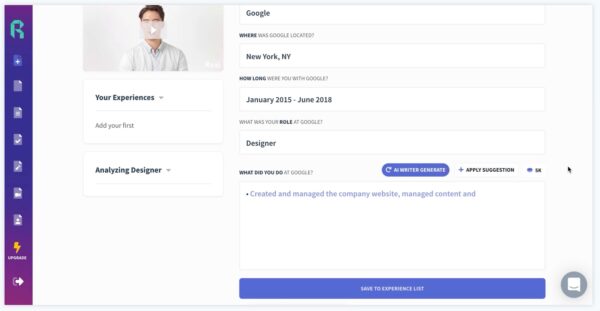
I was only able to quickly point people to Rezi, the AI-assisted résumé writing tool, but it’s worth checking out.

Thanks to everyone who attended, and to Computer Coach for inviting me to do this presentation!